Edit parts
Zoodle is not limited to creating a new model from a sketch. Once you have a part, keep working by marking the existing geometry and asking Zookeeper to modify it.
Use this workflow for changes like adding a cutout, moving a feature, resizing a hole, changing a wall thickness, or adjusting a local detail that is easier to point at than describe.
1. Mark the existing part
Open Zoodle from the Zookeeper prompt controls while the existing part is visible. Draw near the feature or region you want to change, then send the marked image back to the composer.
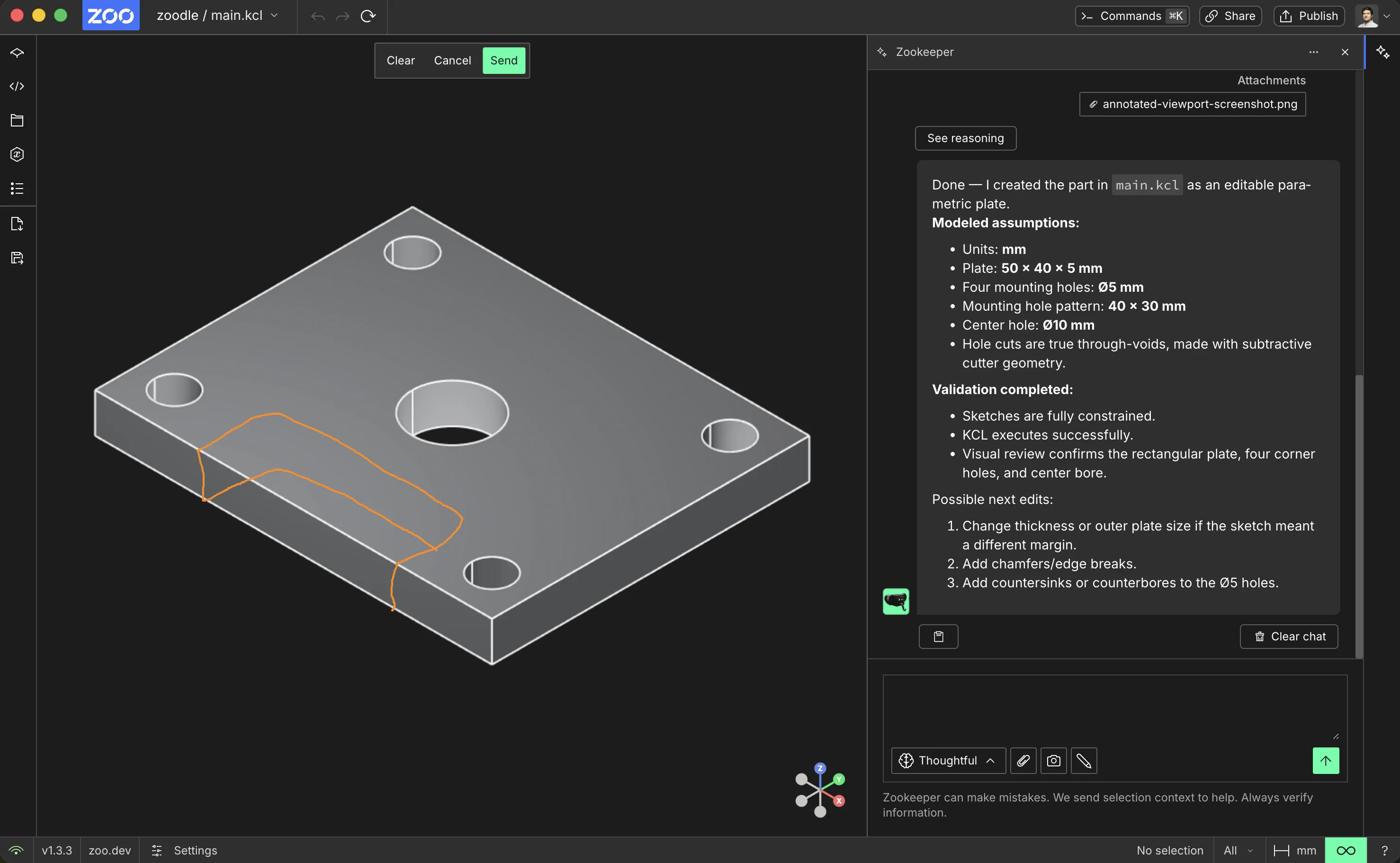
2. Ask for the change
Add a prompt that describes the intended edit. For follow-up work, be specific about the operation and the target:
- "Add a rectangular cutout where marked."
- "Move the marked hole 8 mm toward the edge."
- "Round the circled edge with a small fillet."
- "Make the marked wall 2 mm thicker."
The image tells Zookeeper where to apply the edit. The prompt tells it what edit to make.
3. Review the result
Zookeeper applies the requested change to the same model, preserving the editable part context while adding the new geometry.
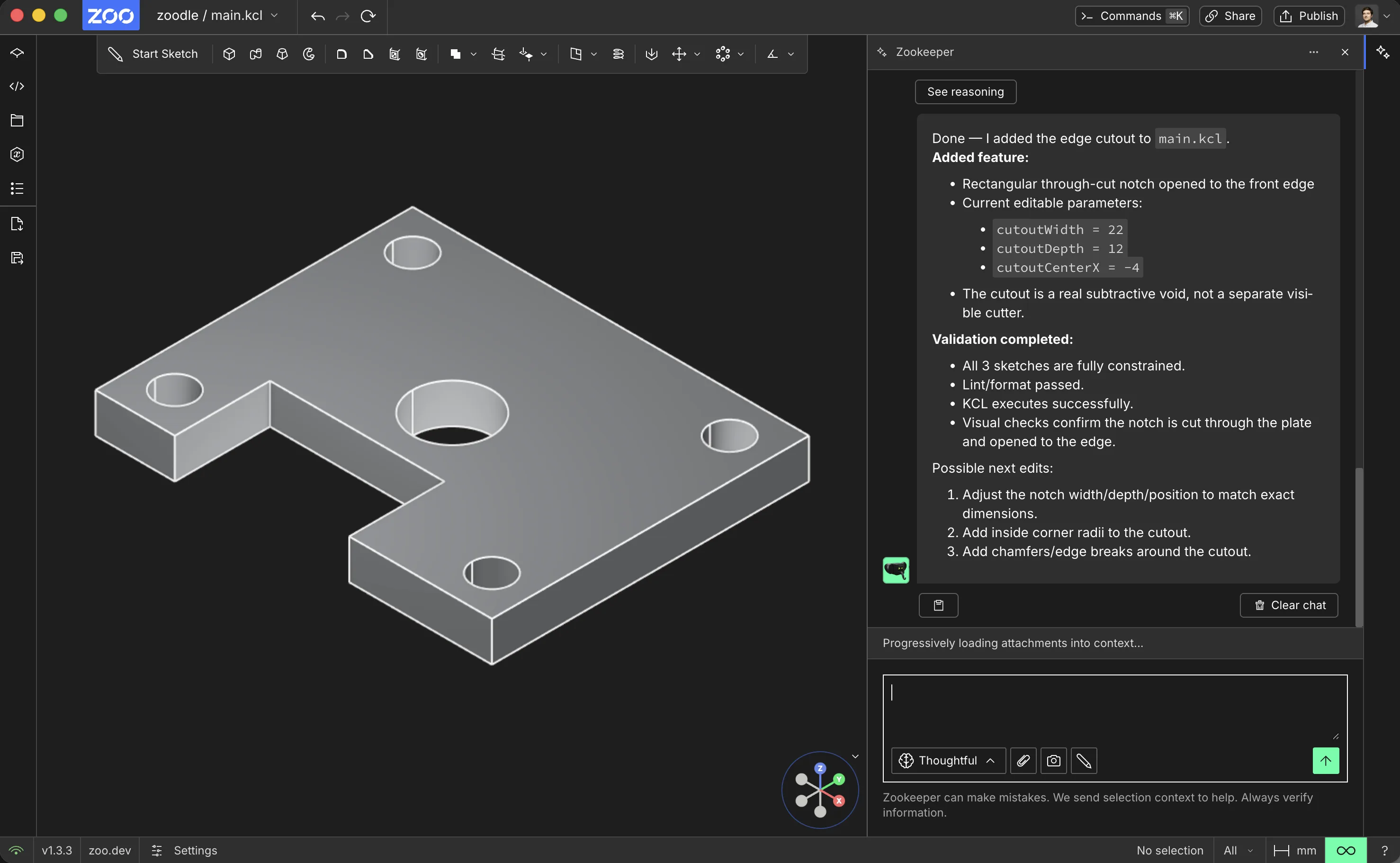
Inspect the model, feature tree, parameters, and updated KCL after the edit. If the change is close but needs refinement, make another Zoodle markup and continue the same loop.
You can also use Zoodle to add annotations to the edited part.