Aquarium
Aquarium is Zoo's public CAD gallery for discovering, viewing, and sharing models. Use it when you want a model to have a public destination outside Zoo Design Studio. Projects are submitted from Zoo Design Studio and become public after review by a Zoo team member.
Aquarium is not a project library: publishing only submits a snapshot to the Aquarium, while your project continues to live on in your project library. Each future edit does not get published to the Aquarium after you publish.
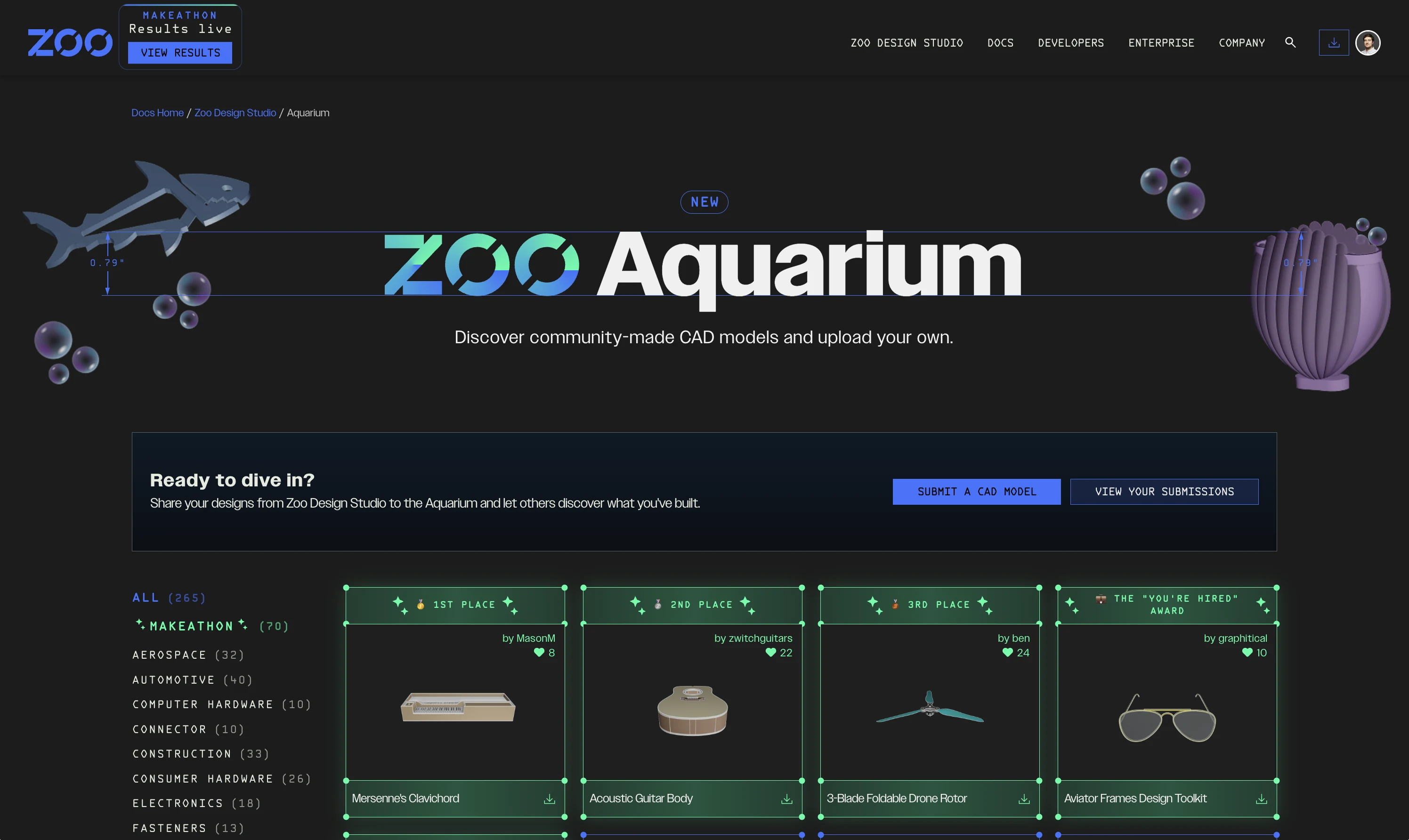
Aquarium shows public CAD models that can be browsed, opened, and shared
Public Model Page
An Aquarium model page gives the model a public destination that can be opened in a browser. Use it for examples, demos, tutorials, and models you want other people to inspect or open via a shared link.
Publish a project
To submit a project for Aquarium review:
- Open the project in Zoo Design Studio.
- Select
Publishin the Top Bar. - Enter a title and description.
- Select at least one Aquarium category.
- Review the Aquarium terms, then select
Submit for review.
Before publishing, make sure you are signed in, have a username set on your Zoo account, and have a non-empty KCL file without errors open in the project. The Publish button is disabled when the current KCL file is empty or has errors.
Publishing requires the project to be stored with Zoo's Cloud Sync service. If you publish a project from a directory-type library, the submission dialog warns that a successful submission will move the project folder into the managed Personal Cloud folder.
Resubmitting a project
If the project has already been submitted, the dialog restores its publication details and shows
the last submission date. Edit the details and select Update submission to send a new version.
When reviewers request changes, Zoo Design Studio shows their feedback when you open the project; update the project and submit it again to return it to the review queue.
Submitted Version and Status
An Aquarium submission captures the current version of the project at the time you submit it.
Edits and Cloud Sync updates to the Personal Cloud project do not automatically change the version submitted to Aquarium. Open the Publish dialog and select Update submission when you want to submit the current project version for review.
Zoo Design Studio can show these publication statuses:
| Status | Meaning |
|---|---|
| Pending Review | The submitted version is waiting for Aquarium review. |
| Published | The approved version is publicly available in Aquarium. |
| Changes requested | A reviewer asked you to revise the project and submit it again. |
| Rejected | The submitted version was not accepted for Aquarium. |
Updating a submission returns it to Pending Review. Wait for Published before sharing it as a
public Aquarium model.
Remove a project from the Aquarium
The cloud project powers its Aquarium entry. Moving a published project to a local-only project library will delete the cloud project, which also deletes the public Aquarium entry. Deleting the project outright has the same effect.
Keep the editable project in Personal Cloud while you want its Aquarium publication to remain available.
Terms
Models published to Aquarium are governed by the Aquarium terms. Review them before publishing models that include proprietary or customer-sensitive geometry.