Project Libraries
A project library is just a way of grouping projects in Zoo Design Studio. The ZDS home page is organized into libraries so that you can separate out different groups of your work. You can think of project libraries like folders containing projects, although in reality they are just a view into any grouping of projects, which makes them more powerful in a way we'll explain shortly.
On desktop, there are two kinds of libraries available today:
- Directory libraries are views into a folder on your computer. When you open a project from a directory library, you are literally editing your own files. This is good, because we think you should own your files!
- Cloud libraries are views into projects stored in Zoo's Cloud Sync service. Today we only support "personal" cloud projects but we will be supporting shared Team and Org projects soon. As you work on these projects, a local copy is saved to your computer, so you always have a copy if you need.
- We are experimenting with more kinds of libraries, but one that will come soon is a Recents library type, which will simply be a way of grouping the projects you've opened most recently. If you have other ways of sourcing and grouping projects that you would like to see, reach out to us on our support forum.
When you open Zoo Design Studio as a desktop app, you should see one directory library and one cloud library available to you right away.
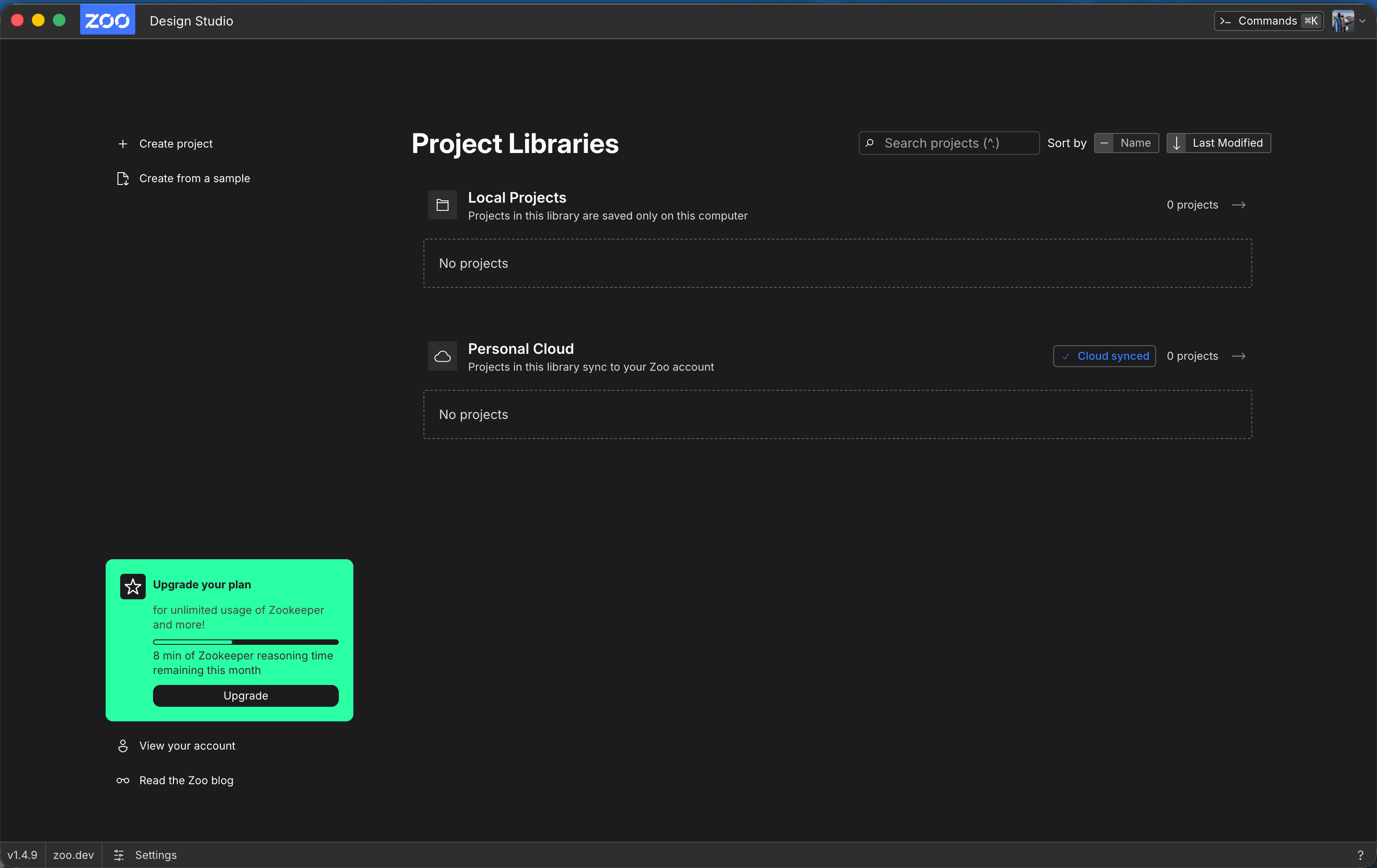
Managing libraries
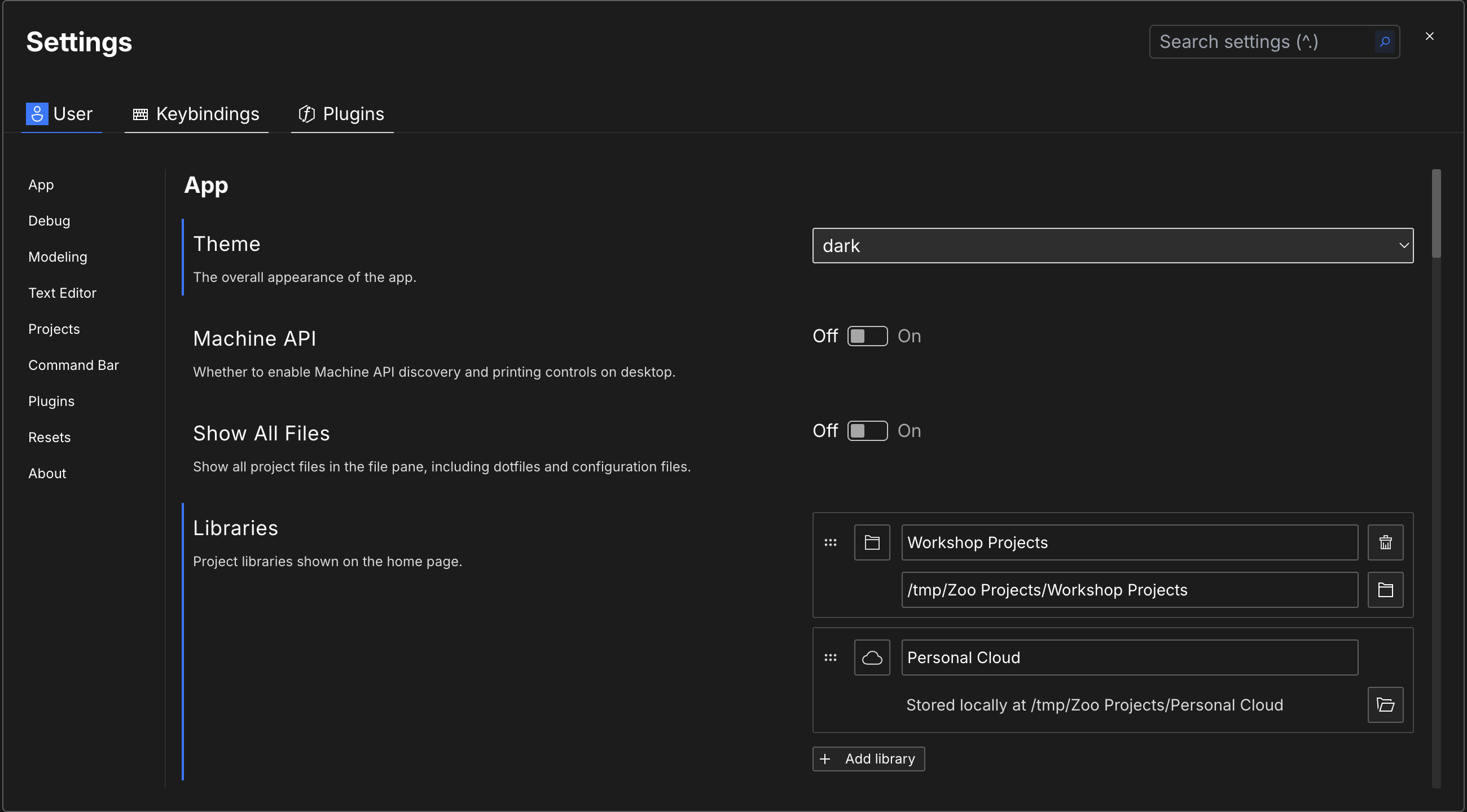
You can manage your libraries in your user settings. Libraries can be reordered, renamed, created, or deleted as you see fit. Try out creating a second Directory-type library to separate out work for under a client, or for a product line you're building out.
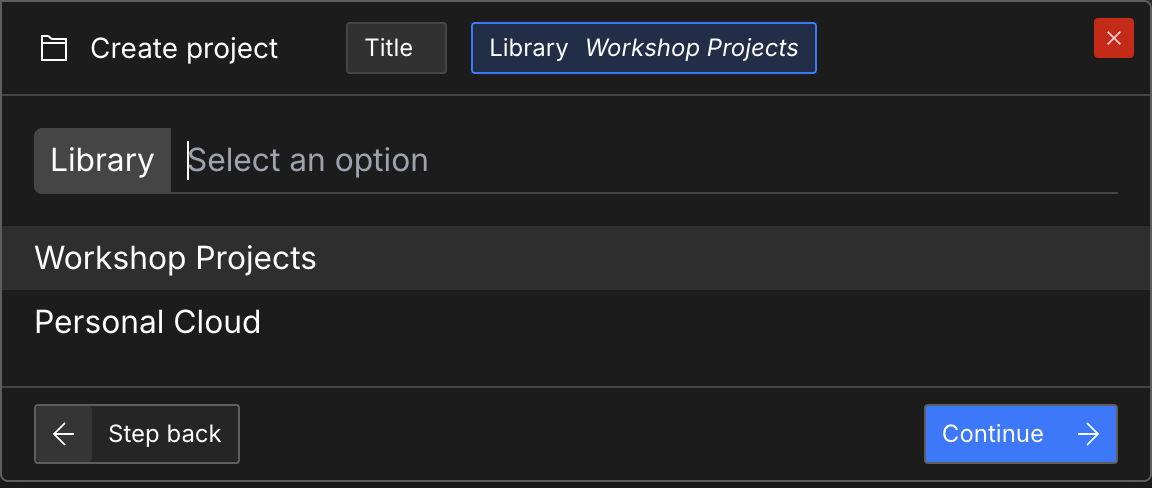
Create a Project in a Library
For every new project you create, it will be placed in one of your libraries. You can change which library it will be added to by clicking the Library label in the command palette and choosing a new library to place the project within.
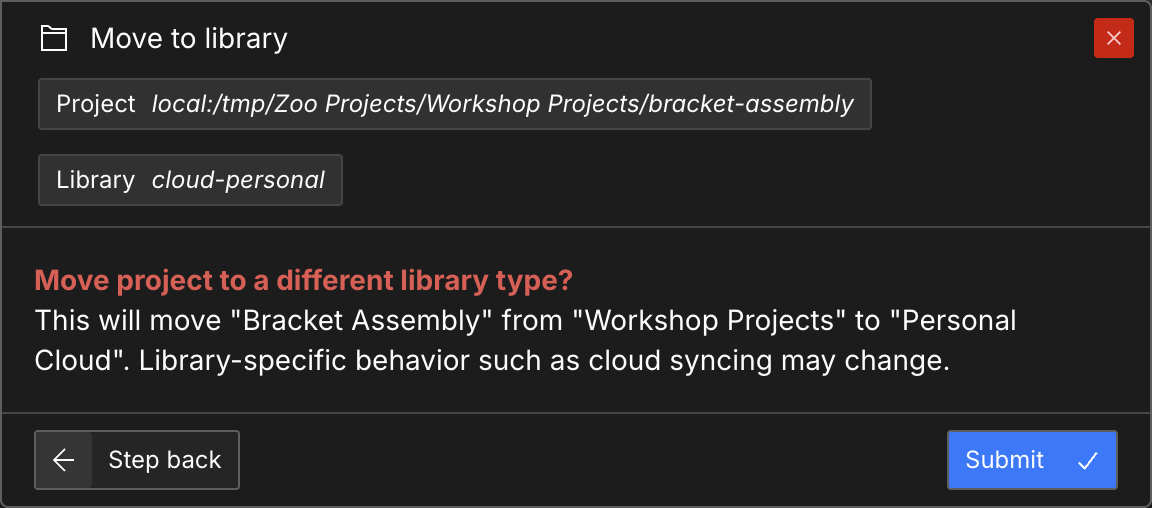
Move Projects Between Libraries
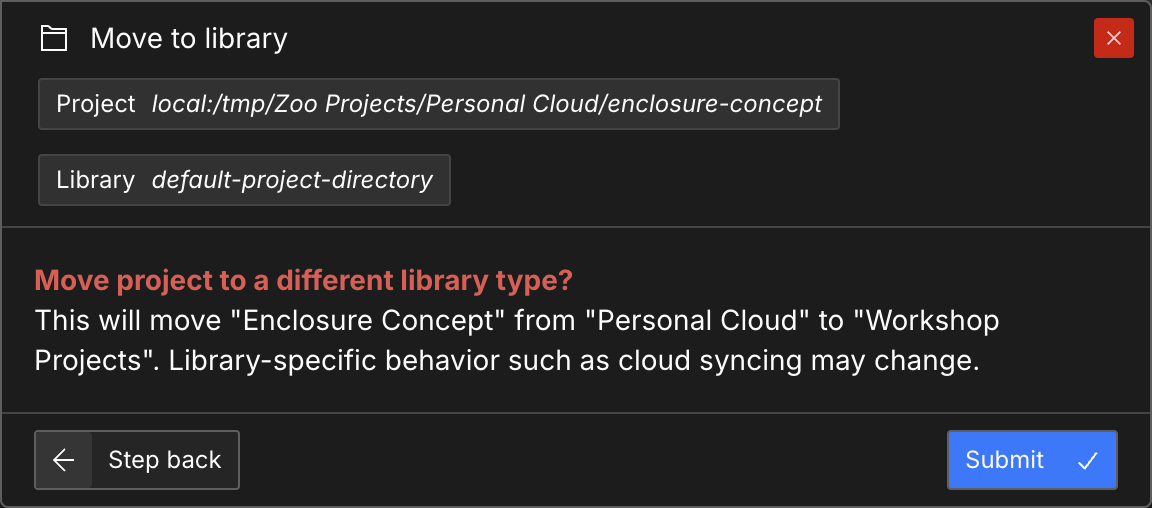
Use Move to library to change where a project lives. You can start this from the Command Bar, the project menu in the top bar, or a project card's context menu on Home.
Important: Moving a project out of a Cloud-type library will attempt to delete the project from Zoo's cloud storage after a confirmation dialog. This is a way you can return your project to local-only by moving it to a Directory-type library.
Delete a Project
Deleting from a Directory library removes the local project folder. Deleting from a Cloud library deletes the cloud project and removes the local working copy on the current device when one exists. It also deletes any Aquarium publication backed by that cloud project.
Read the confirmation dialog before deleting. Project deletion is permanent and has no undo.
Desktop and Browser Differences
On desktop, Zoo Design Studio can show Directory and Cloud libraries side by side. This lets you keep local-only work, Git-based work, and cloud-backed work in one Home view.
In the browser, Zoo Design Studio only allows Cloud libraries.