Cloud Sync
Cloud Sync what we call it when you use our cloud storage to save and sync your projects across devices. Zoo offers a Projects API service to upload project snapshots to the cloud and manage them over time. The Zoo Design Studio app provides that service to you wrapped up into a plugin.
If you save a project to cloud type project libraries, congratulations you're using Cloud Sync! Your changes get automatically saved as you work. Hopefully that should be as much as you ever need to know about Cloud Sync: it should "just work™️". But in case you ever need to dig into how it works, these docs are here for you.
Getting Started
When you open the desktop Zoo Design Studio app for the first time, you will see two project libraries where you can create projects. One of those is called "Personal Cloud", and any projects you put in there will be synced across any device you sign in from.
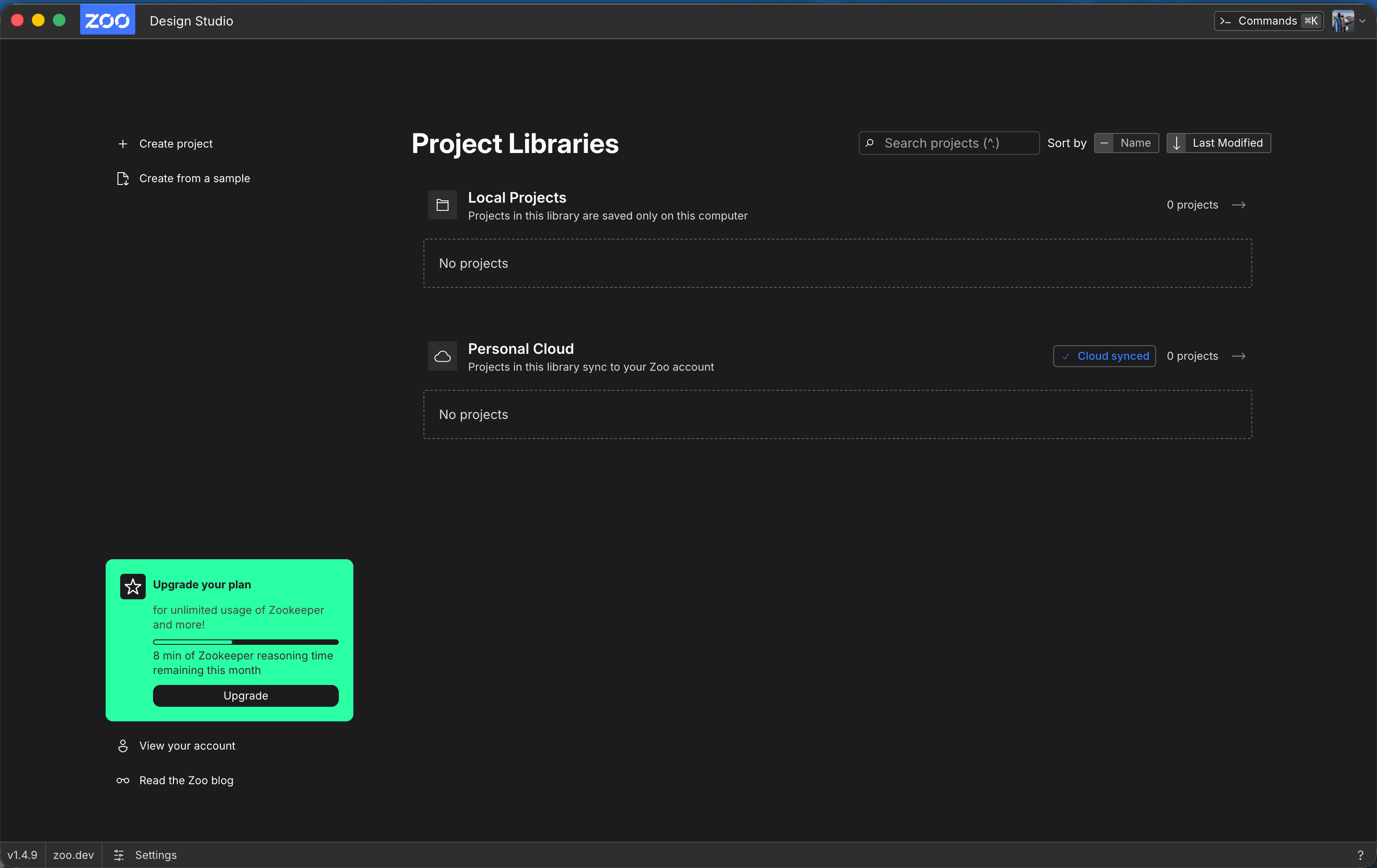
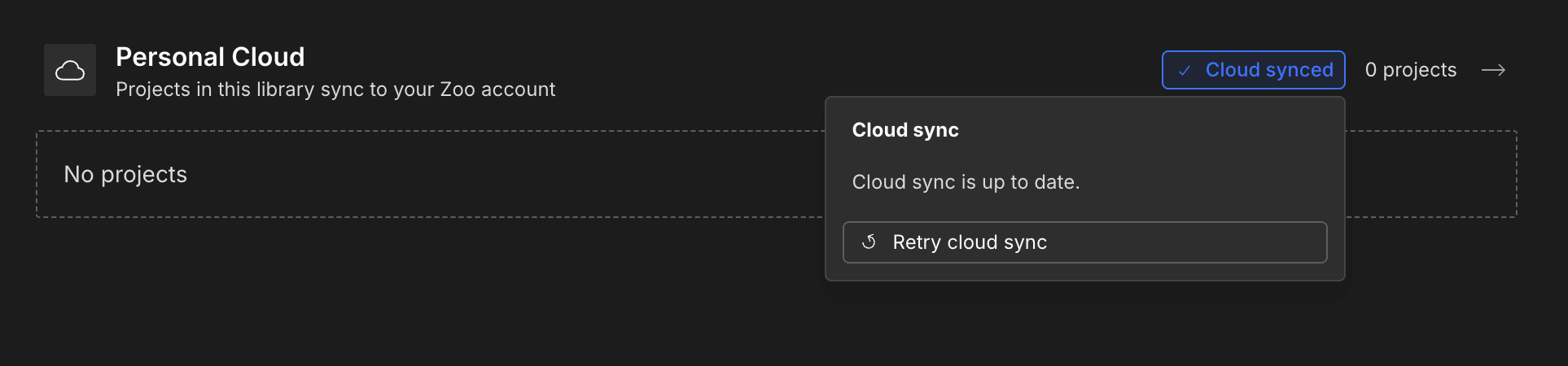
The badge on the Personal Cloud library will show you if syncing work is in-progress or complete, and let you inspect any problems that occur while Cloud Sync is running. It is clickable if you ever want to inspect what's syncing.
We want you to have control over your files, which is why we give you the option of saving projects without running Cloud Sync in the desktop app. However, please note that in the rowser version of the app we only allow for cloud synced projects: all projects you add to app.zoo.dev will be synced to the cloud.
Common Workflows
Use A Project On Another Device
- Create the project within the Personal Cloud library or move an existing project into there.
- Wait for Home to show
Cloud synced. - Sign in to Zoo Design Studio with the same account on the other device or in a browser.
- Open the project from Personal Cloud.
Resolving Sync Conflicts
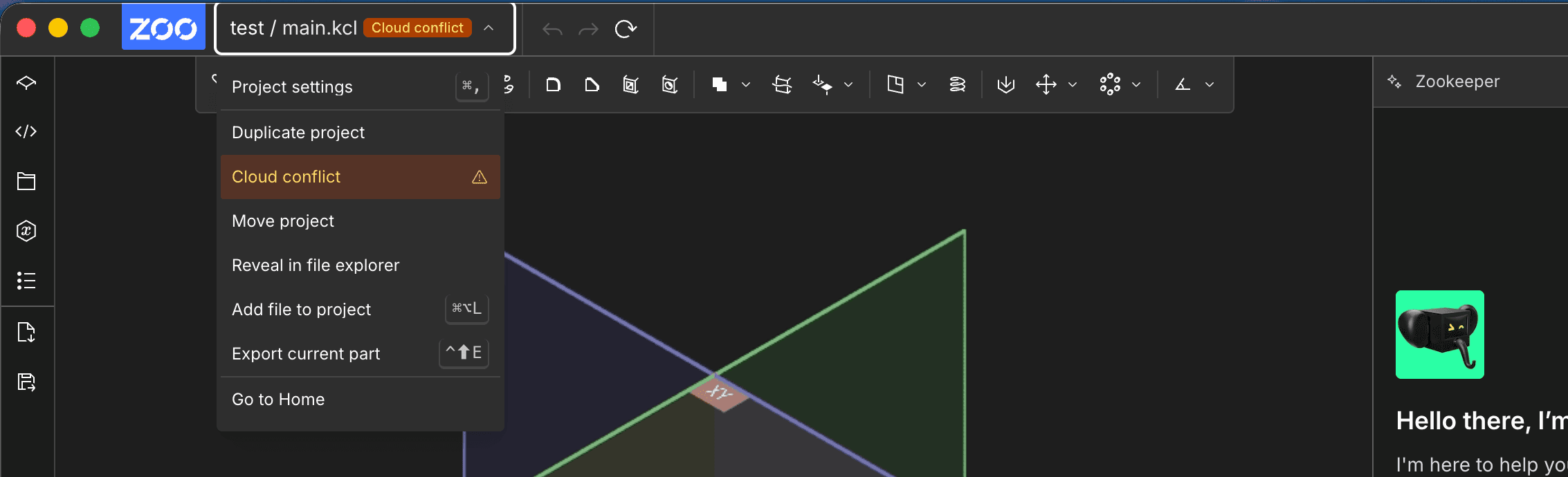
Cloud Sync does not yet support live collaboration between multiple users at the same time, so if you make edits to the same project across several devices, its possible that Zoo Design Studio won't know which edit "wins". When this happens, the project will show a badge in the top bar when opened, with a menu item that will let you inspect the conflict.
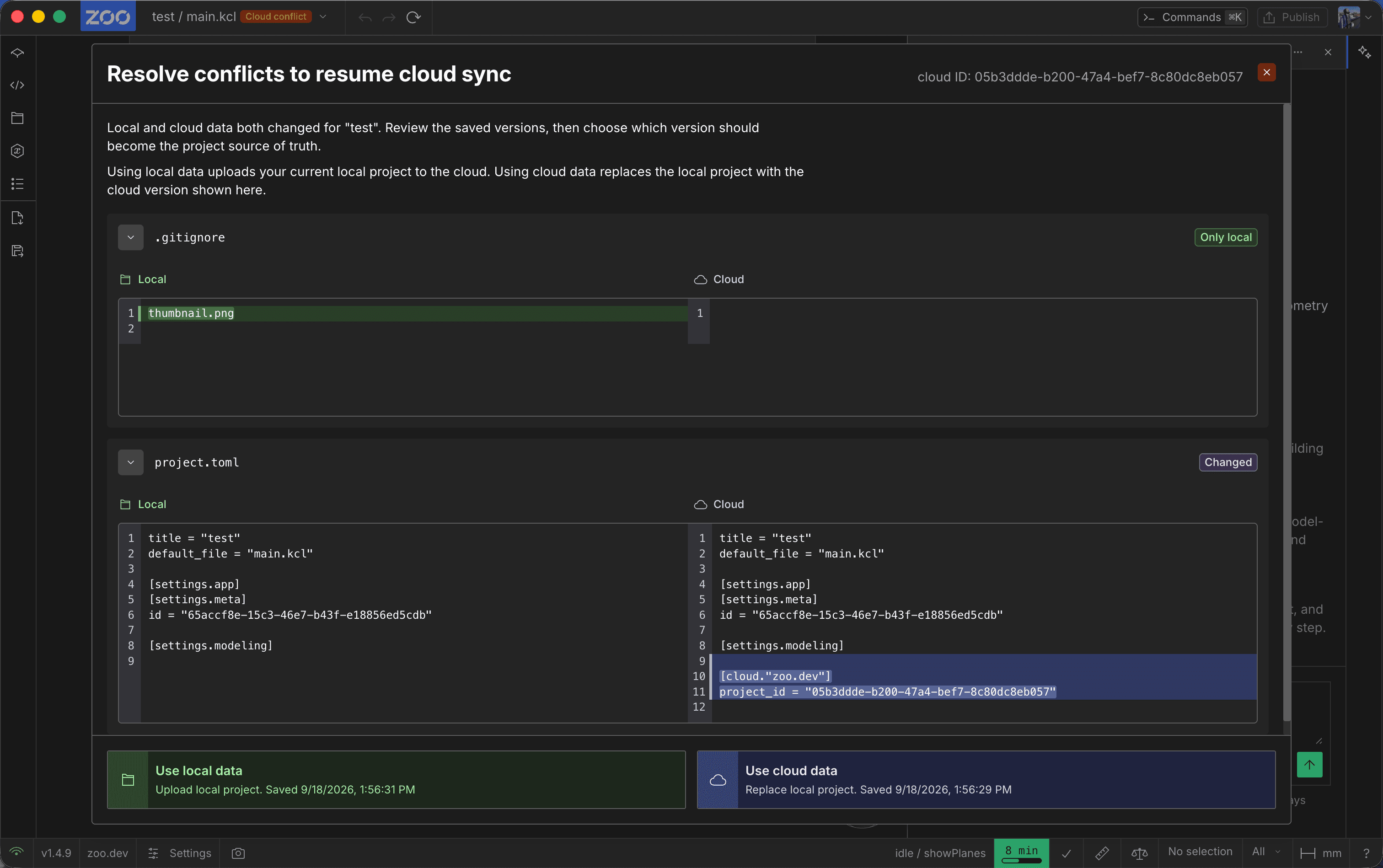
Choose either to use the local edits or the edits coming from the cloud using the buttons at the bottom of the dialog.
Stop Syncing
To make a synced project local-only, move it from Personal Cloud to a directory-type project library, such as the default "Local Projects" library. You can move a project by dragging it between libraries on the home page, or right clicking on the project card and selecting "Move to another library". The project will be deleted from Zoo's cloud storage and your project will only be stored on your one device from then on.
Publish To Our Project Showcase
Our public project showcase the Aquarium uses cloud sync too!. Not all cloud synced projects are published to the Aquarium, but all projects submitted to the Aquarium must be cloud synced, so when you submit a project for publication in ZDS we move it to your Personal Cloud library for you.
- Open the project and click the
Publishbutton in the top-right. - Complete the Aquarium submission and submit it for review.
- Wait for the publication status to become
Published. - Share the public Aquarium URL.
Common Questions
How Do I Know Which Projects Are Saved to the Cloud?
Check the library that contains the project on Home. Only projects in Personal Cloud and other cloud-type project libraries are saved to your Zoo account. The library will have a cloud icon next to it.
How Much Cloud Storage Do I Get?
Storage is limited to what we consider fair use for Free users. Paid subscription tiers all get unlimited storage.
Are Cloud Projects Private?
Yes. Today, unpublished Personal Cloud projects remain private in your Zoo account on both Free and paid plans. Changing or canceling a subscription does not publish or remove them; after a downgrade, the projects remain private in the same account on the Free plan.
Zoo may introduce a semi-public storage state for Free-plan projects in the future. That behavior, including any associated data-use or model-training policy, is not active today. Zoo will update its website and documentation before enabling a different visibility or data-use policy.
Will Clearing My Browser Cache Delete My Cloud Projects?
No. Clearing the browser's cached images and files does not delete projects from Personal Cloud. If you clear the site data or site storage for app.zoo.dev while pending work is still syncing, there is a chance that your changes may not be saved, but your project is safe in the cloud.
Where Do My Files Live?
Cloud Sync projects live in two places:
- In the Zoo cloud storage system, where the canonical project is stored
- On your device, where a working local copy is stored.
- In the desktop app you can see this folder's path under
Settings>User>App>Librariesand reveal it in your file explorer. - In the browser, the working copy lives in browser site storage rather than a normal folder. You always own your Zoo projects, which is why we make sure you have a working copy on your device at all times as plain text.
- In the desktop app you can see this folder's path under
Can I Work Offline?
You can keep editing a downloaded Personal Cloud project without an internet connection. Your changes stay in its working copy and sync after you reconnect. A cloud-only project must be downloaded before you can open it offline. The ZDS app does need an internet connection to connect to the engine though.
Can I Use Personal Cloud on Multiple Devices?
Before moving to another device or browser, wait for the first device to show Cloud synced. Cloud Sync is not a live collaboration session. If the same project changes in two places, Zoo Design Studio may combine independent file changes or ask you to resolve a conflict.
Is Cloud Sync Version Control or a Backup?
No. Cloud Sync keeps the current project available through your Zoo account, but it does not provide Git-style history, branches, or code review. Use Git or another backup system when you need revision history or recovery outside the current synced project.
Development is underway for version control built on top of the Zoo Projects API that powers Cloud Sync, so stay tuned.
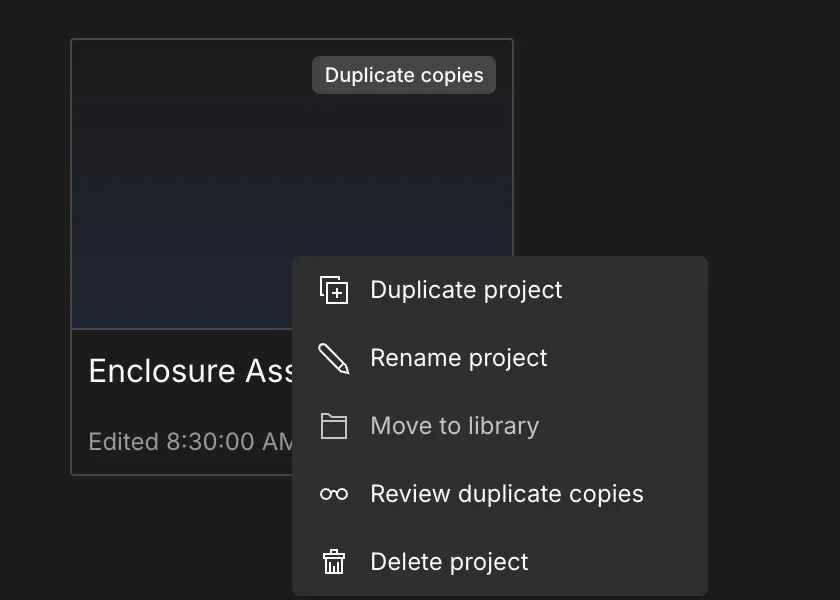
What does this "duplicate local copies" warning mean?
This rare warning appears when more than one project on your device shares the same cloud project ID. Zoo Design Studio will try to help you out to prevent conflicts by alerting you with this badge. To fix it, right-click on one of the duplicate copies' project card and select "Review duplicate copies", then choose which version to keep from the dialog that appears.
What does this "shared history" warning mean?
This warning appears when project folders on your device share the same local project ID, usually because they were copied outside Zoo Design Studio. These copies can share Zookeeper history.
Right-click a project card and choose Separate project copies. Choose which copy keeps the shared history, or start fresh for all copies. Each remaining copy gets a new project ID and no saved conversation reference. This does not delete the conversations stored by Zoo.
How do I turn off Cloud Sync?
You can toggle the Cloud Sync feature on or off within the Plugins section of the settings. The plugin is on by default, but you can use Zoo Design Studio with entirely local storage in the Desktop app. The plugin is forced on in the browser version of the app, because we have found that users are confused with "local-only" storage in the browser.