AI Chat
AI Chat houses the Zookeeper conversation pane inside Zoo Design Studio. Use it to ask questions about the current project, request geometry creation or edits, and work through modeling tasks in natural language.
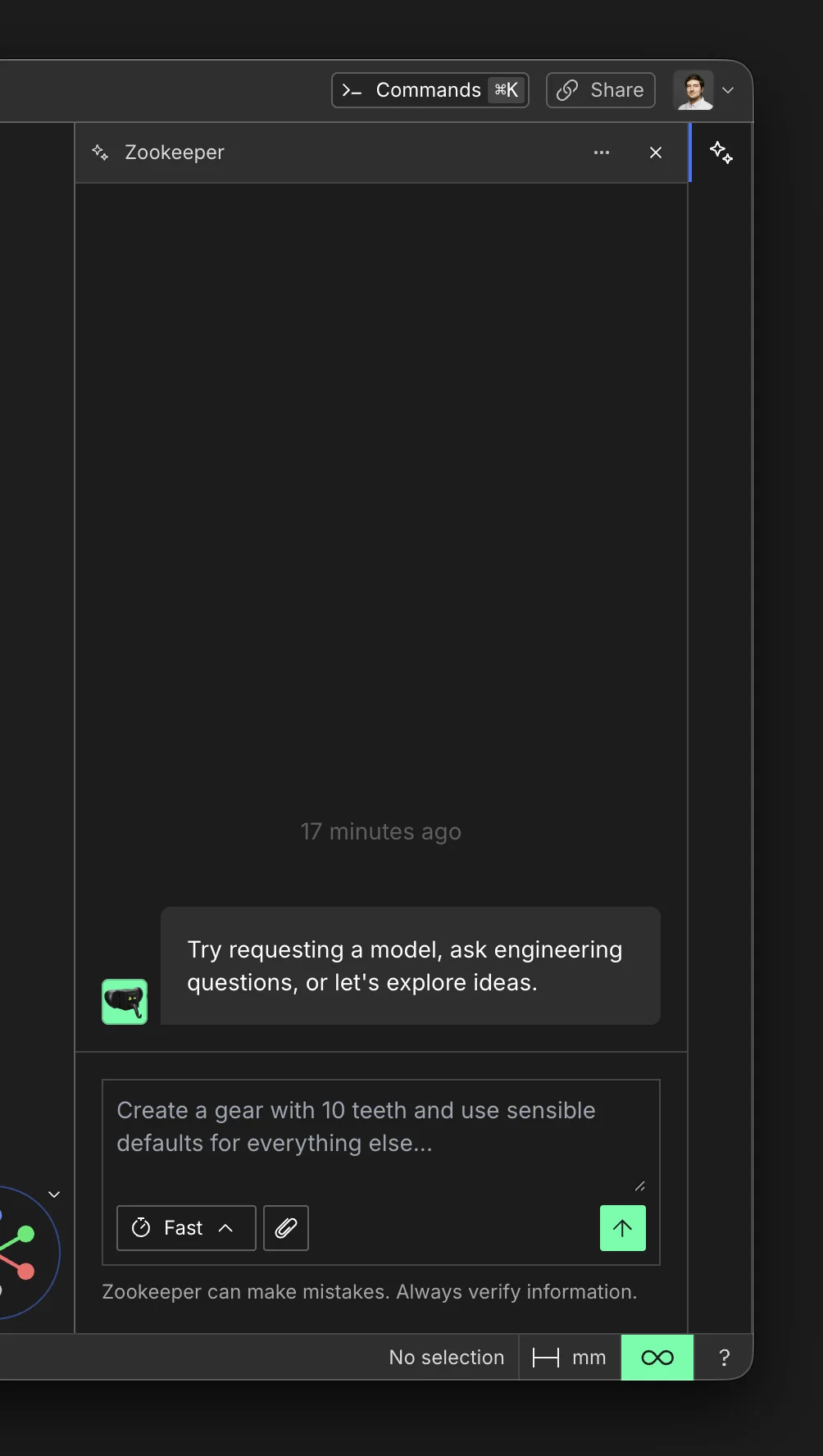
For the full agent guide, see Zookeeper.
Continue on Another Device
For cloud-synced projects, Zookeeper resumes the project's saved conversation when you open it on
another device. Open the project on the device where you last used that chat and wait for
Cloud synced. Then sign in with the same account on the other device and open the project from
its cloud library. See Cloud Sync.
Clear Chat
Choose Clear chat from the Zookeeper menu to start a fresh conversation for the current project. This removes the project's reference to the previous conversation; it does not delete that conversation from Zoo's servers. After a cloud project syncs, reopening it on another device will not resume the cleared conversation.
Core Concepts
Prompt
A Prompt is the message or instruction you send to Zookeeper. Prompts can be questions, requests to generate or edit geometry, or any other task you want the agent to handle.
Response
A Response is the message Zookeeper sends back after processing a prompt. Responses can include explanations, follow-up questions, or actions taken in the project, and may suggest next steps.
Tool
A Tool is a specific capability Zookeeper can use inside Design Studio, such as creating geometry, editing a feature, or reading project state.
Cancel
Cancel stops the current Zookeeper operation before it finishes. Use it when you want to interrupt the current request and change direction.
Reasoning
Reasoning is the internal process Zookeeper uses to decide what to do. It is not always shown directly, but it shapes the response and the actions taken in the project.