Project Browser
The Project Browser is your home screen for project-level work.
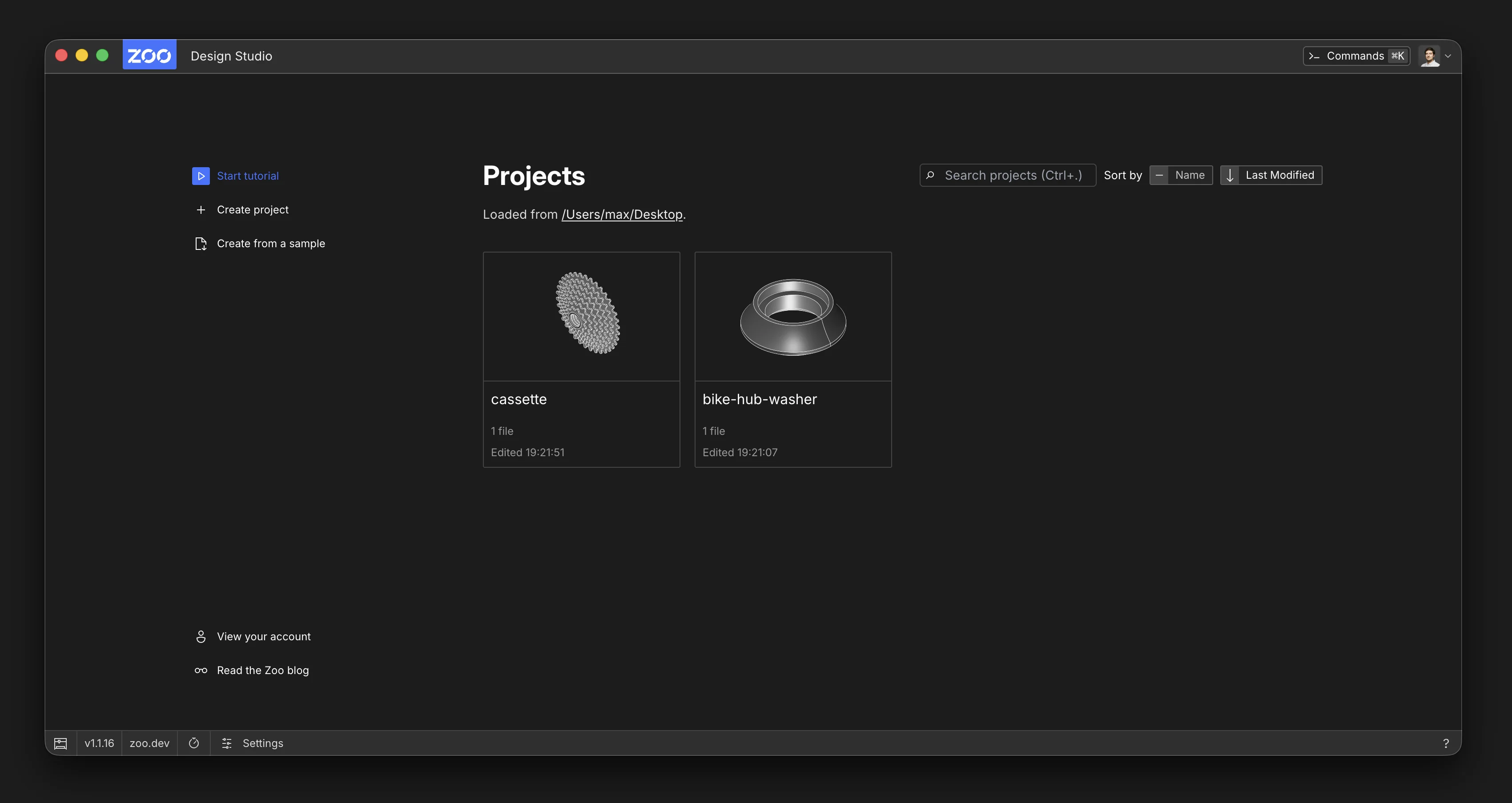
What You Can Do
- See projects grouped by Project Libraries.
- Search projects by name.
- Sort projects by
NameorLast Modified. - Create a project.
- Create a project from a sample.
- Open a project.
- Duplicate a project.
- Rename or delete a project (if you have write access).
- Move projects between libraries.
- Review duplicate local copies of the same cloud project.
- Open Project Libraries settings.
- Inspect cloud sync status badges, including cloud-only, synced, blocked, conflicted, and duplicate projects.
- Inspect Aquarium publication statuses, including pending review, published, changes requested, and rejected.
Aquarium Publication Status
Aquarium publication status is separate from project storage and Cloud Sync status. Published
means an approved version of the project is public in Aquarium. Pending Review, Changes requested, and Rejected describe the review state of the submitted version.
Editing or syncing the Personal Cloud project does not automatically update the submitted Aquarium version. Open the project's Publish dialog to update the submission. See Aquarium for details.
Duplicate a Project
Duplicating a project creates an independent copy with the same files and folders. You can duplicate local projects and cloud projects, including cloud projects that have not been downloaded to your device.
From the Project Browser:
- Right-click the project card.
- Select Duplicate project.
From an open project, open the project menu next to the project name in the top bar and select Duplicate project. In the desktop app, you can also select File → Duplicate Project.
The copy is named after the original project with -copy appended. If that name is already in use,
Zoo Design Studio adds a number, such as -copy-1 or -copy-2.
What You Cannot Do
- Open a project card that does not have write access.
Key Differences in This Area
- Work starts from a project dashboard, not from a single-file open flow.
- Project metadata (preview, file count, edit time) is part of the default start experience.
- Cloud projects can appear before they are downloaded locally; opening one creates a local working copy first.
- A cloud project can have duplicate local copies. The Project Browser keeps the canonical copy clear, shows duplicate copies for review, and does not silently delete Directory library copies.
For project storage and sync details, see Project Libraries and Cloud Sync.